What is OAuth 2.0?
OAuth 2.0 is an industry-standard authorization framework that enables third-party applications to gain limited access to user resources without exposing user credentials. It works by issuing access tokens to applications, allowing them to interact with APIs on the user’s behalf. OAuth 2.0 supports multiple grant types like authorization code, client credentials, and refresh tokens, making it flexible for web, mobile, and desktop apps.
What does OAuth 2.0 have to do with Extract Any Mail Ultimate?
The Extract Any Mail Ultimate is an email extractor software that extracts email addresses from an email account. Since it is a 3rd party application (not an Office365 application), it is mandatory to have OAuth 2.0 access to extract email addresses from an Office365 account or Microsoft email accounts (Hotmail, Outlook, MSN. Live etc).
How to achieve this?
To be able to extract email addresses from an Office365 account or Microsoft account you need to follow some small and simple steps. However, you need to have sufficient access to the email accounts to achieve this. You need to follow the below mentioned steps to complete the whole process.
Step 1: Logging in to the Office365/Microsoft Account
- Open a modern web browser (Google Chrome, Microsoft Edge, Firefox etc).
- Go to the login URL and login to the account.

- After logging into your Microsoft account got to this URL: https://portal.azure.com
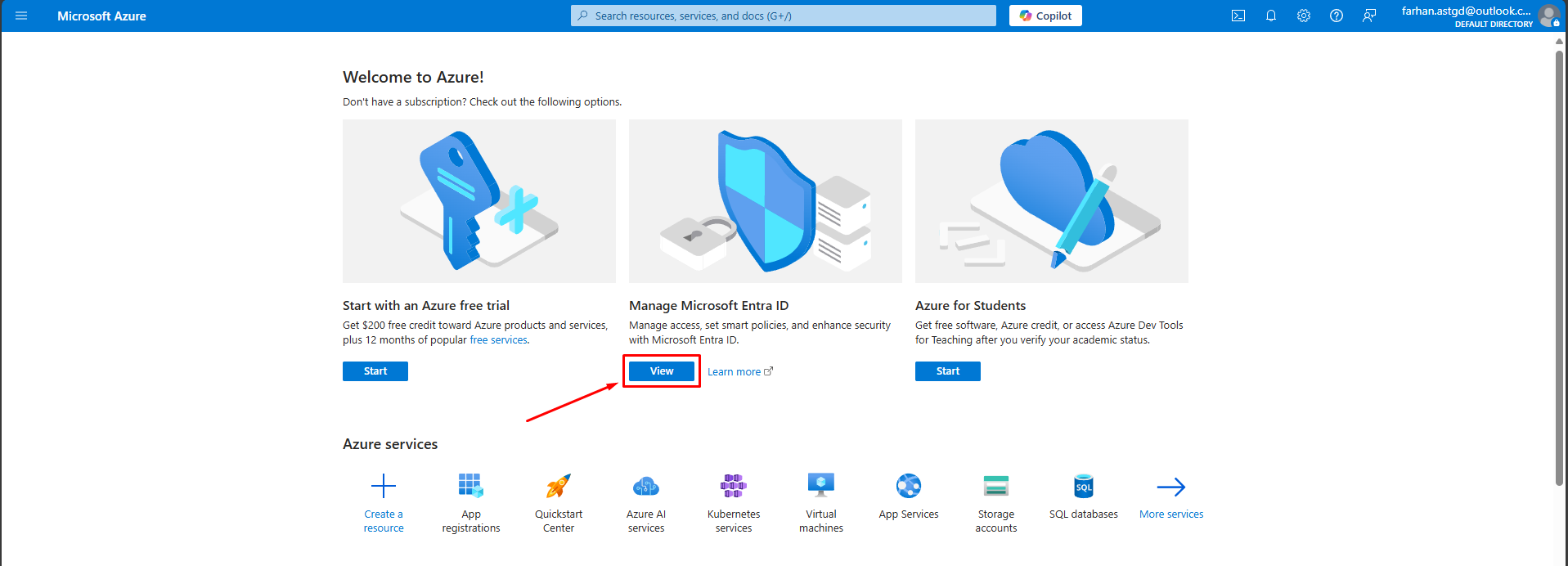
Step 2: Registering an Application in the Azure Portal
- In Azure Portal, go to Microsoft Entra ID > Add > App Registration

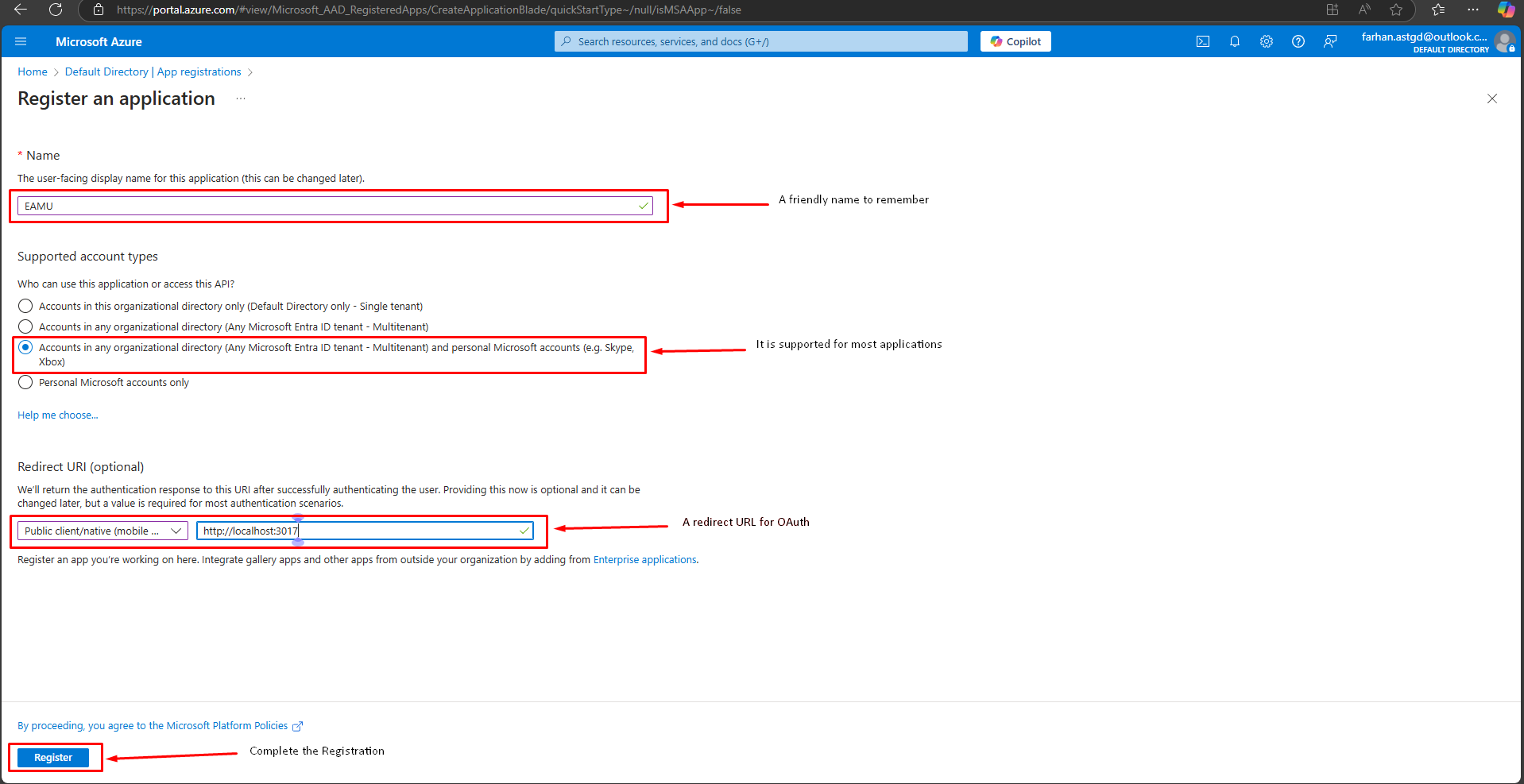
- Set app name and account type (In this case, select 3rd option).
- Select Application type and enter a redirect URL (For our Extractor, enter http://localhost:3017)
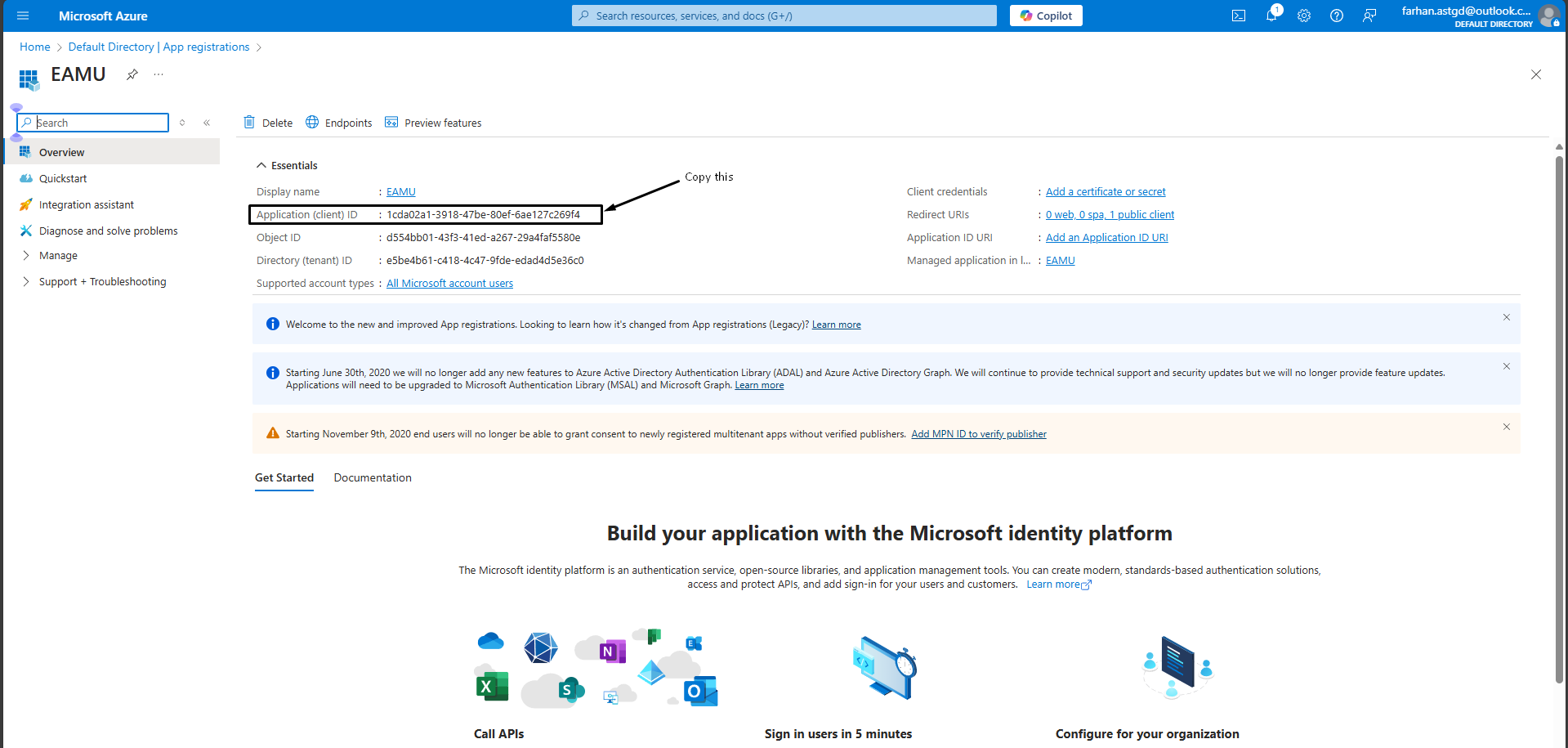
- After registration, copy the Client ID from the app’s Overview page.
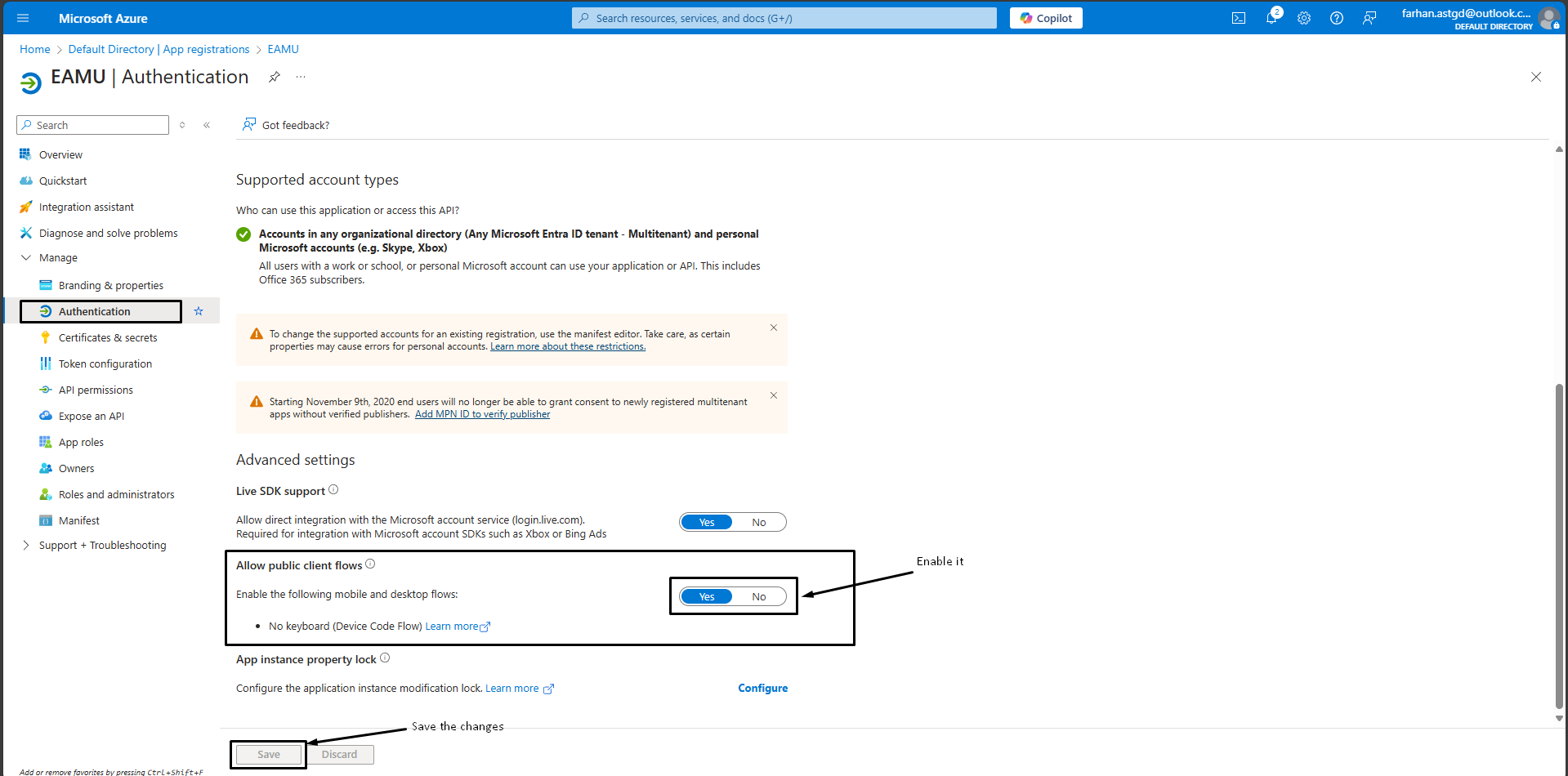
- Now you need to enable “Public client flow”. For that go to Manage → Authentication → Allow public client flows → Set it to “Yes” → Save.
Step 3: Adding an OAuth account in the Extract Any Mail Ultimate.
- Install the Extract Any Mail Ultimate software (If you haven’t done it already).
- Open the software and click on the “Add Account” option
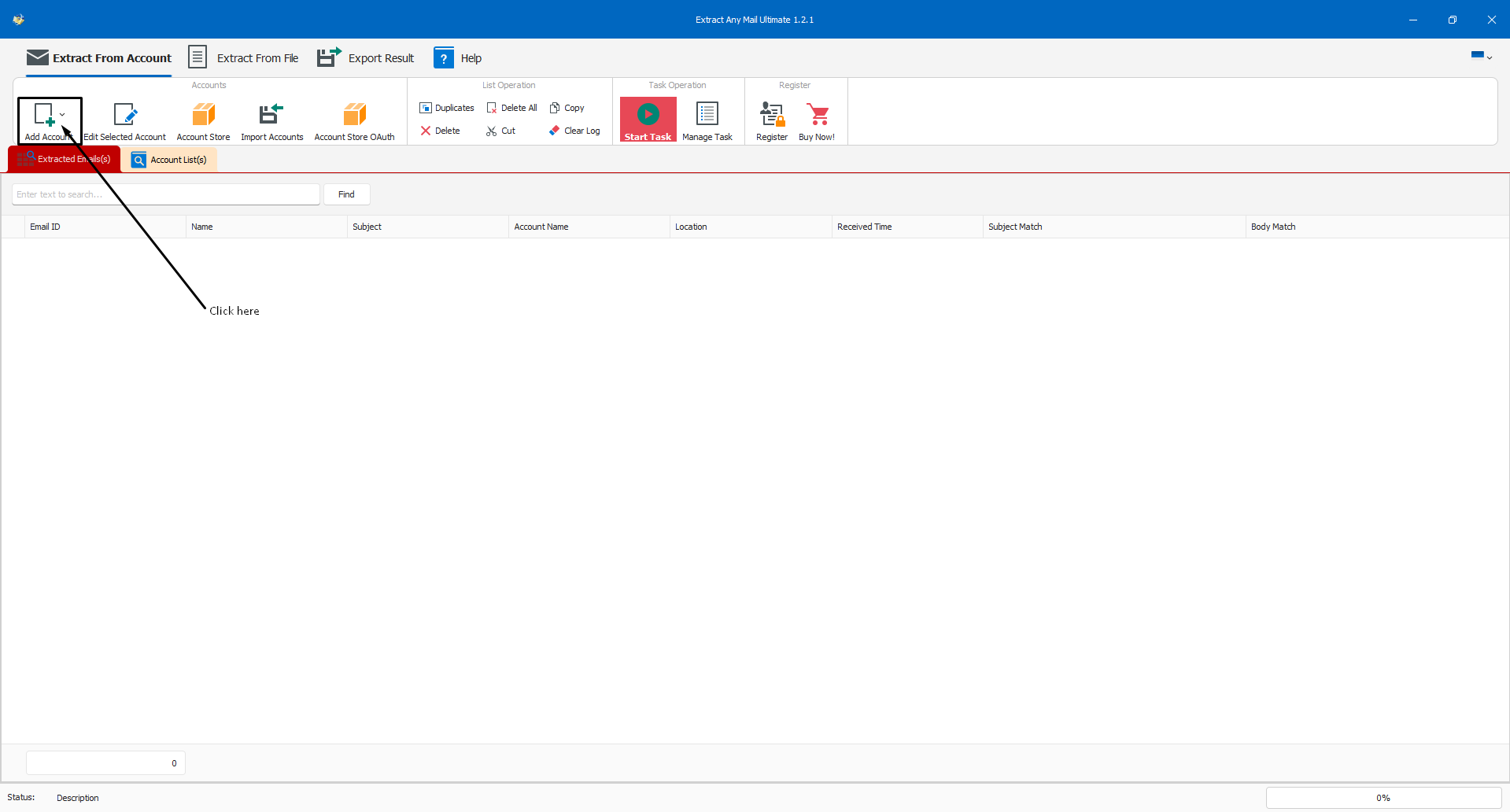
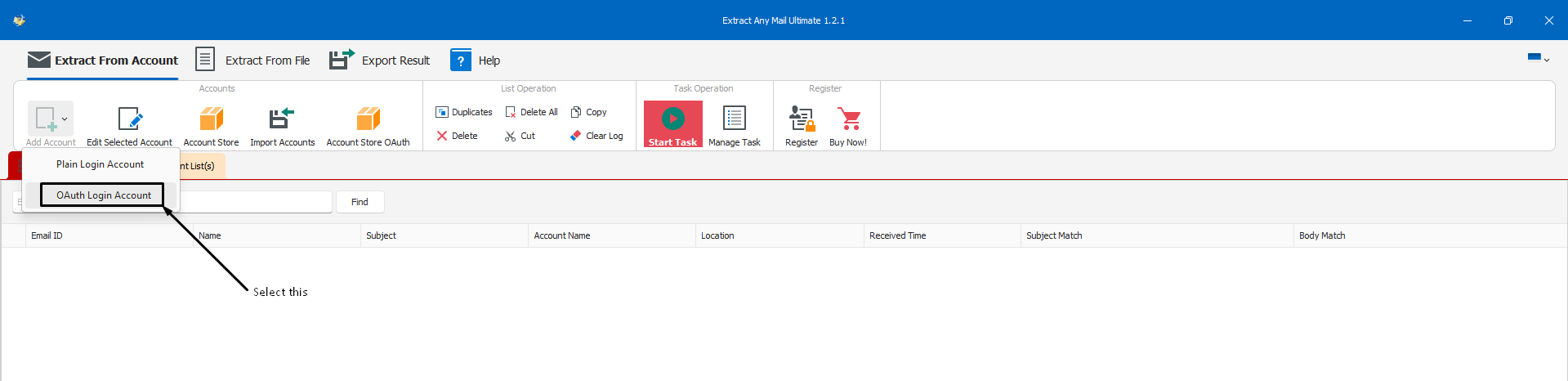
- Choose the “OAuth Login Account” option.
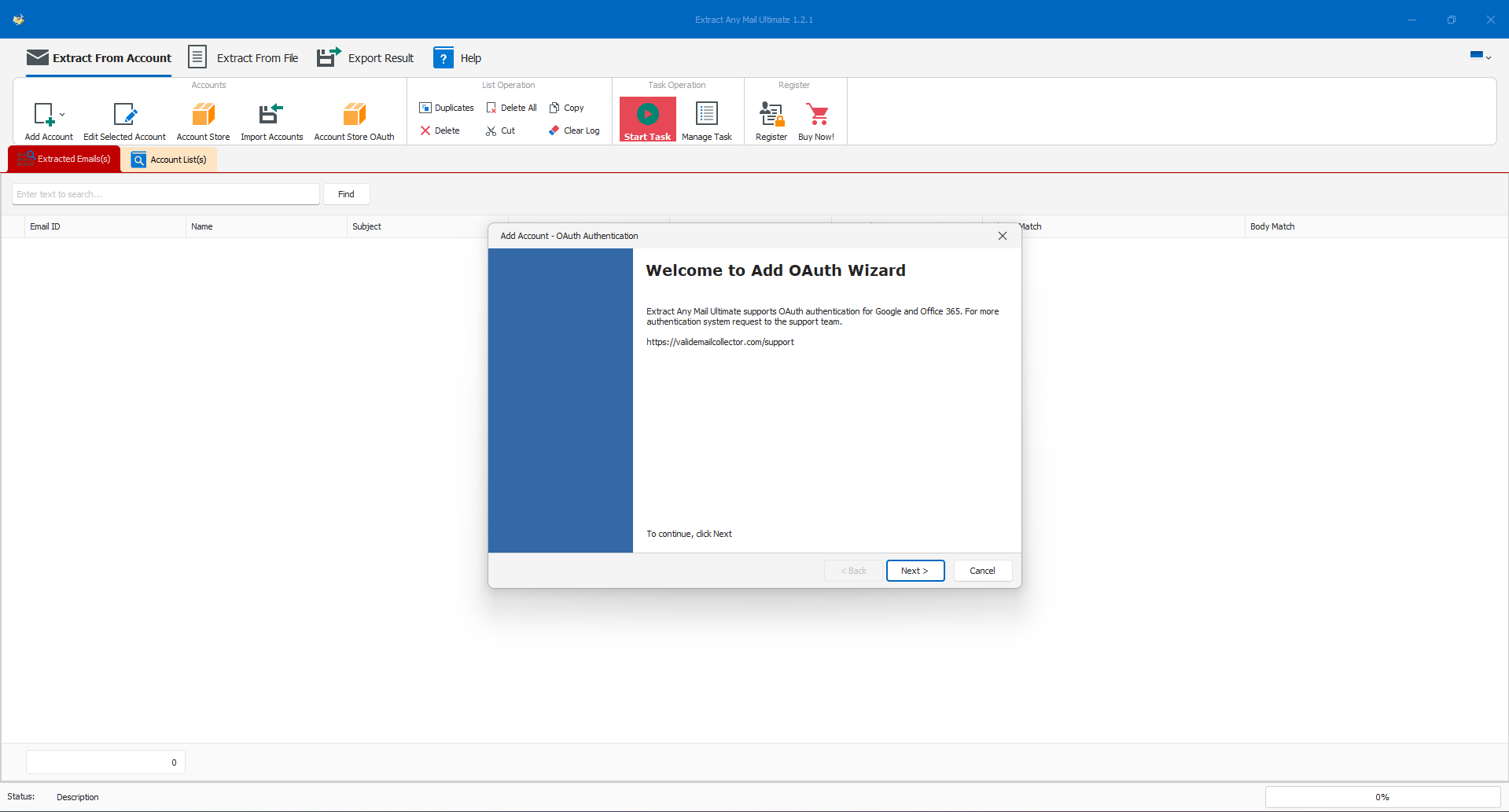
- It will bring up the OAuth account setup wizard.
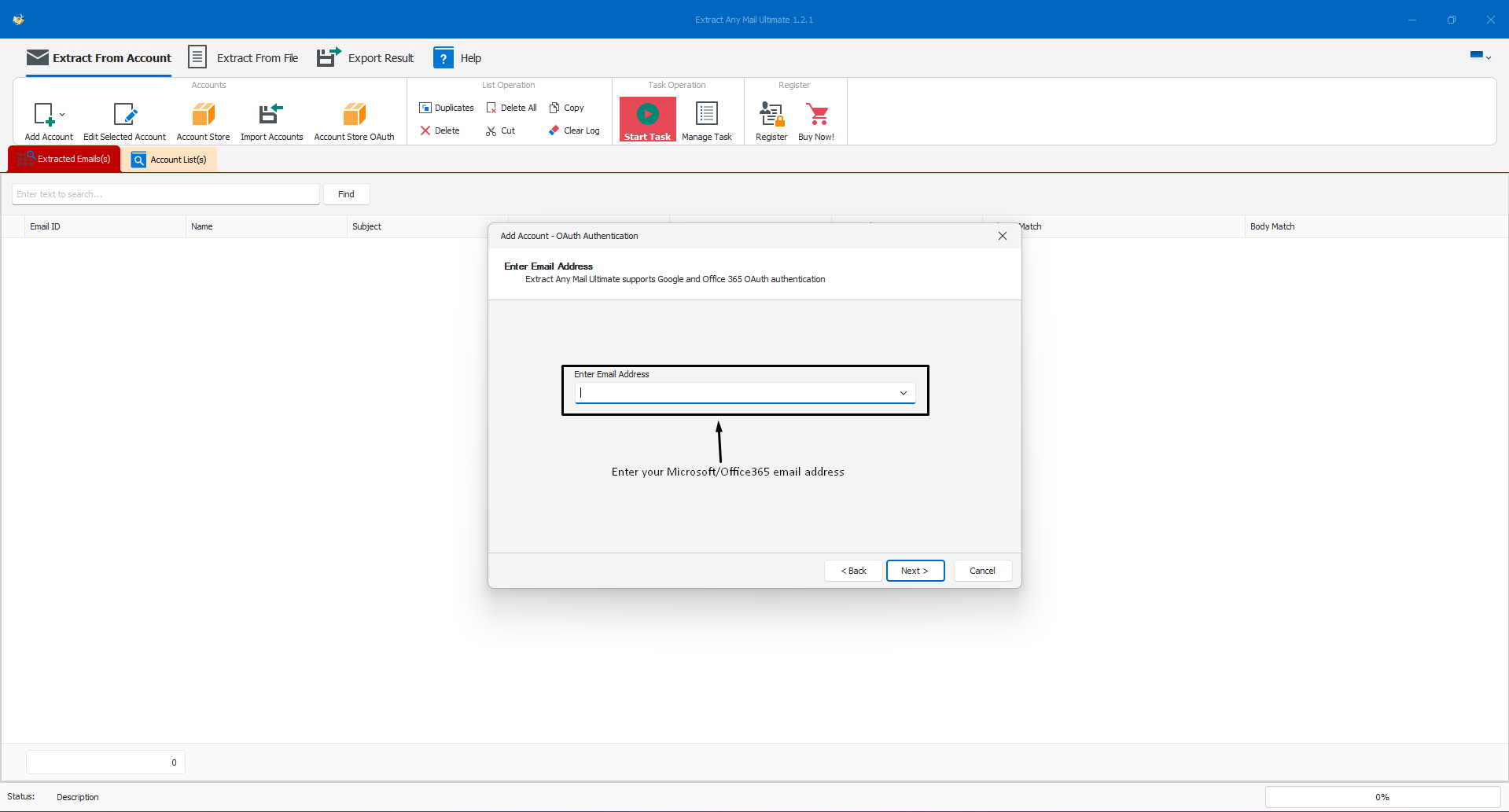
- Enter the email address you want to extract from
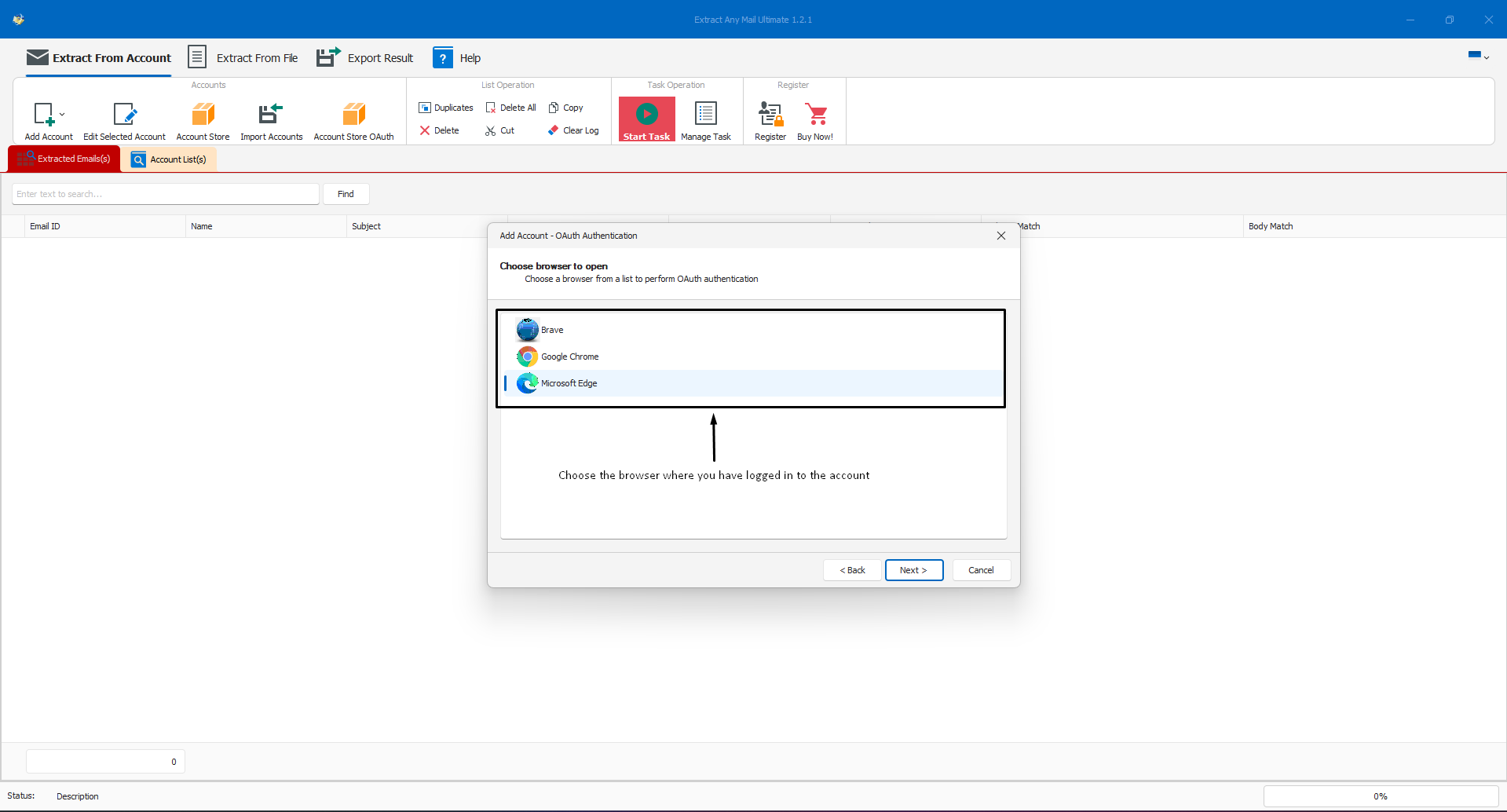
- Select the browser where you have already logged in to the account.
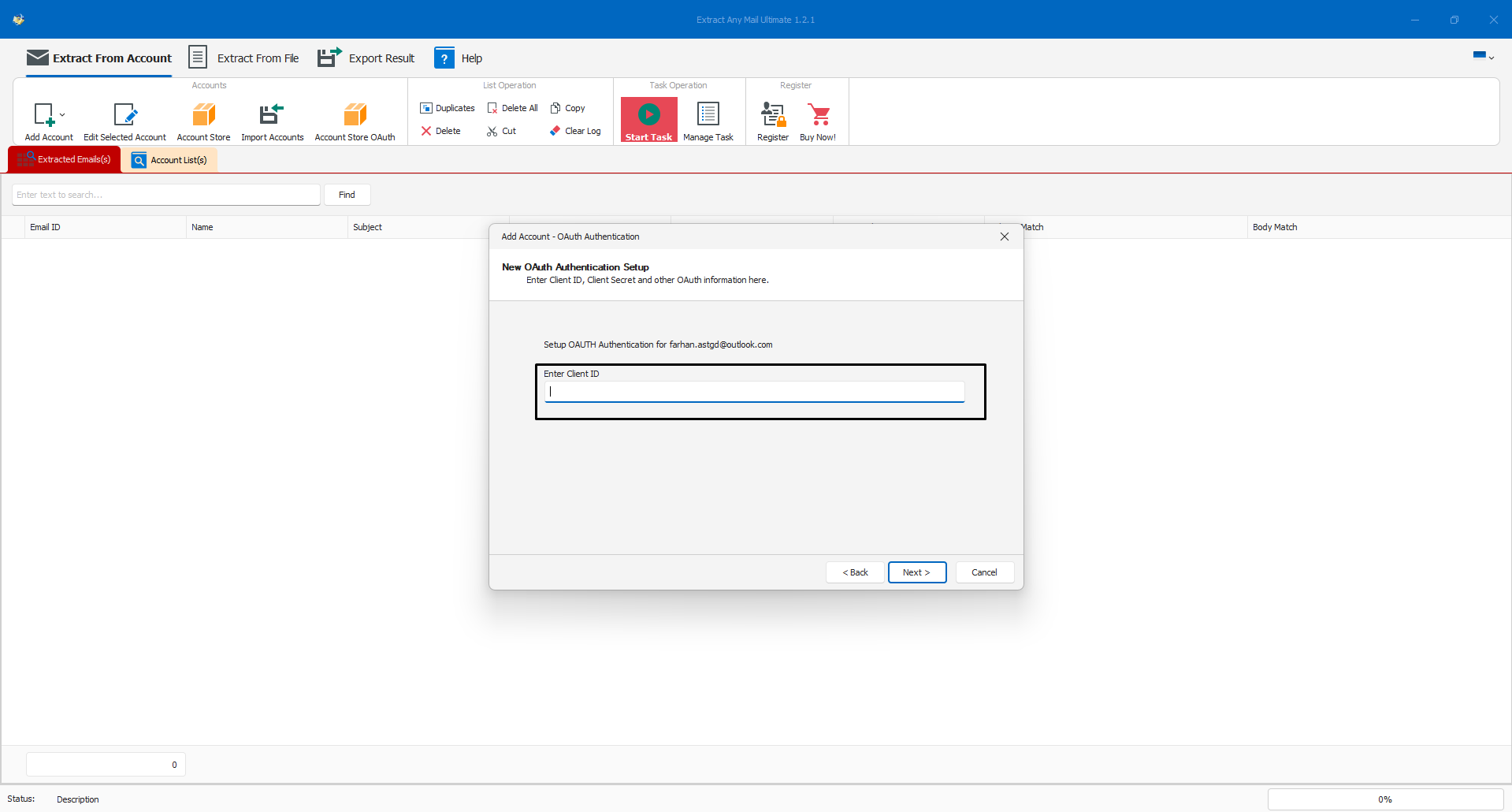
- Enter the Client ID that you got after registering the application on step 2.
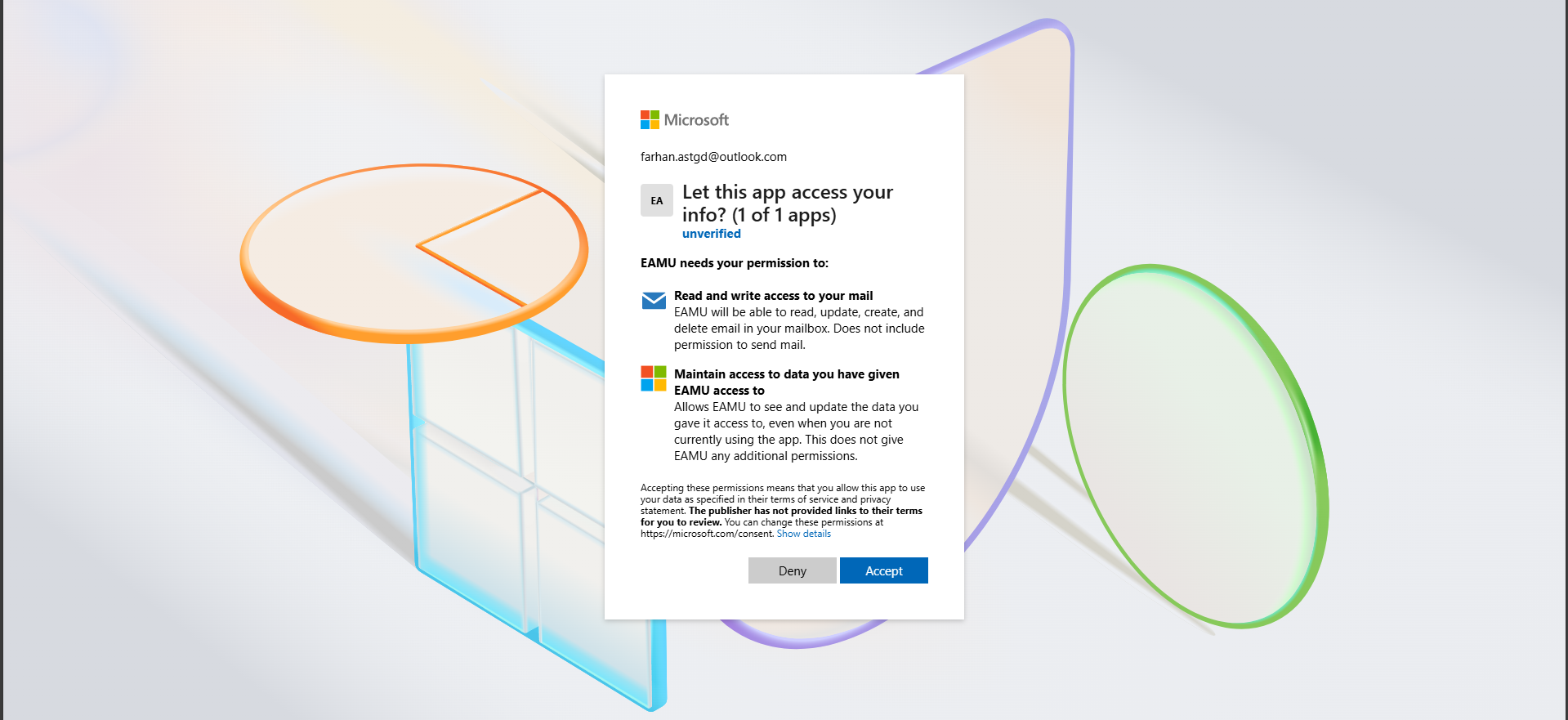
- Once you enter the Clind ID and click “Next”, it will open a window in the browser you selected.

- Enter the email address again on the login page and approve the login (e.g., Outlook mobile app).
- Then accept the terms to grant access to the application.
- Once you successfully grant access to the application, you will be redirected to a window/tab when it will show “Extract Any Mail Ultimate authentication successful.”
- Then open the Extract Any Mail Ultimate Application and you will see “Success! OAuth Authentication”.
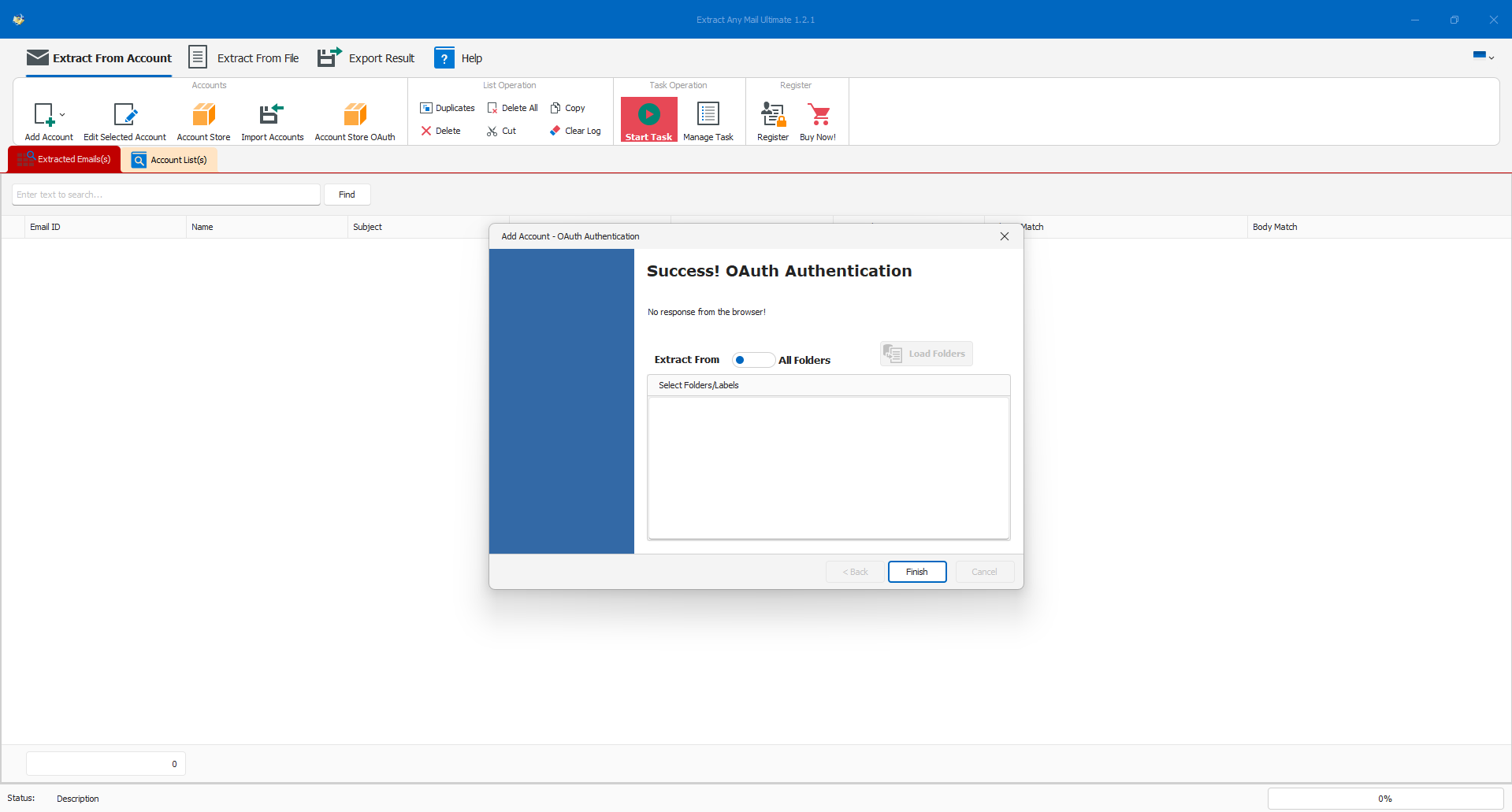
- Now, choose “All Folders” or “Specific folder” by clicking the “Load Folders” option.
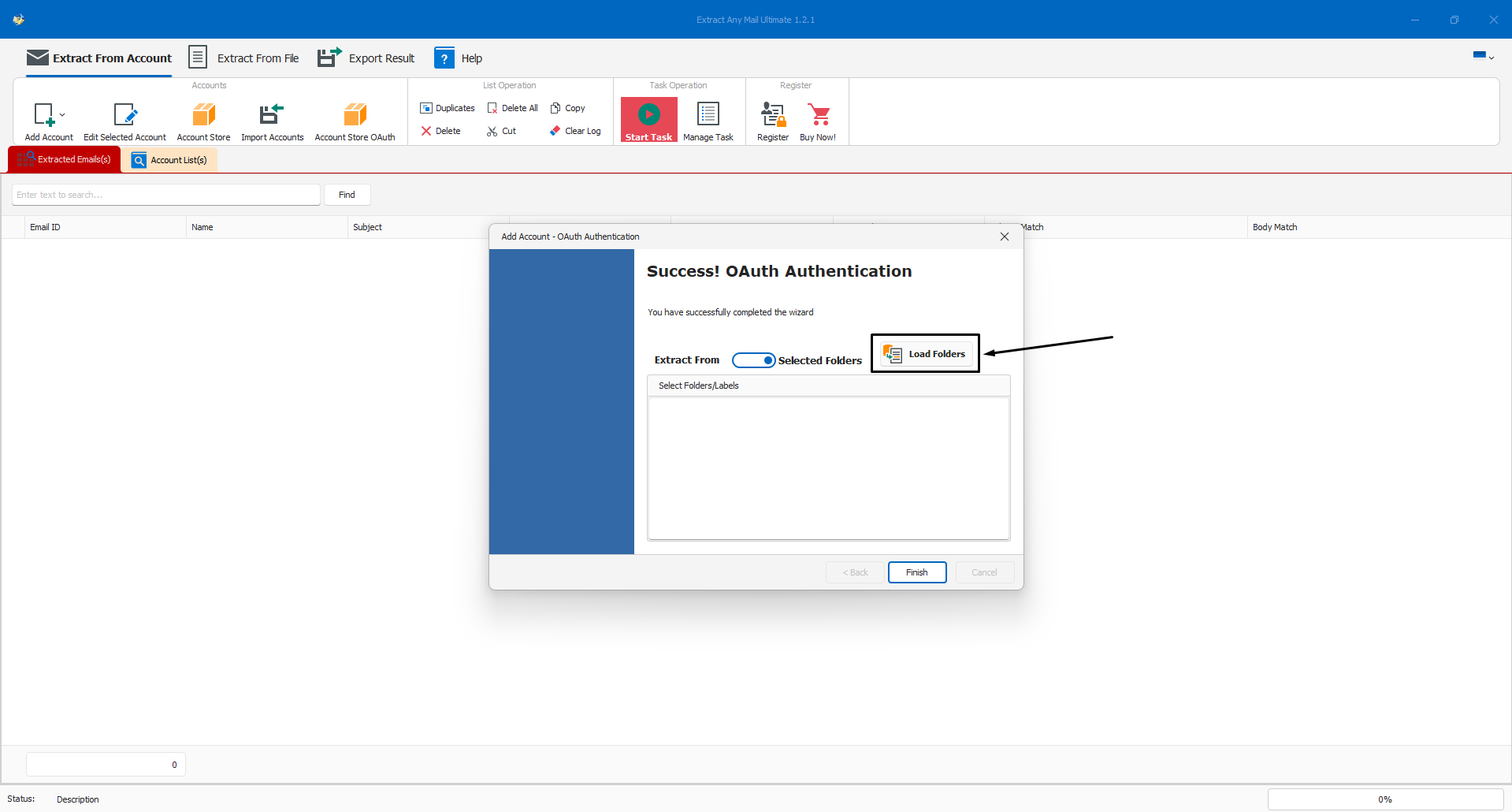
- Then click the finish option to complete adding the account for extraction.
Step 4: Extracting email addresses
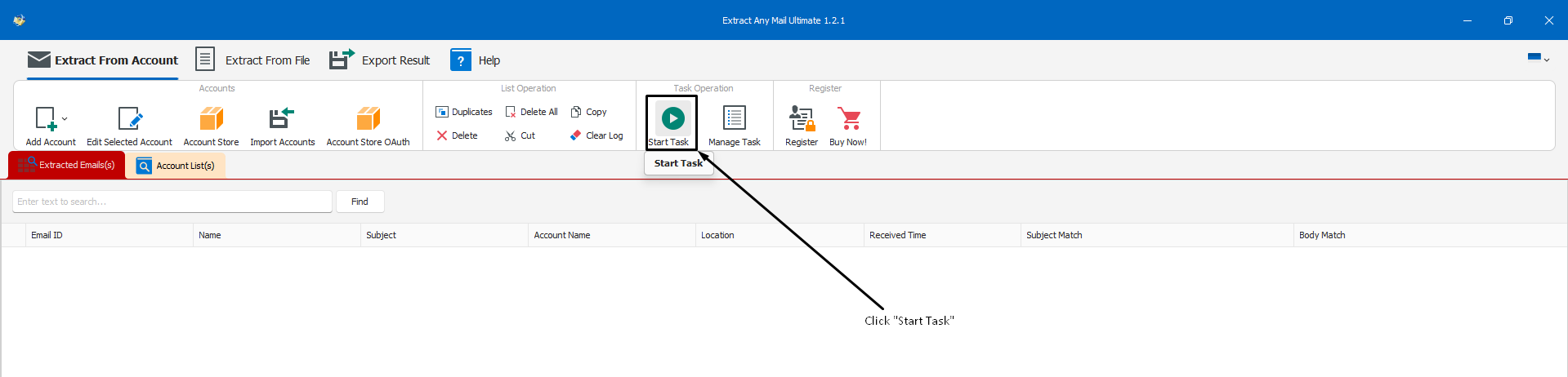
- Click start task to initiate the email extraction process
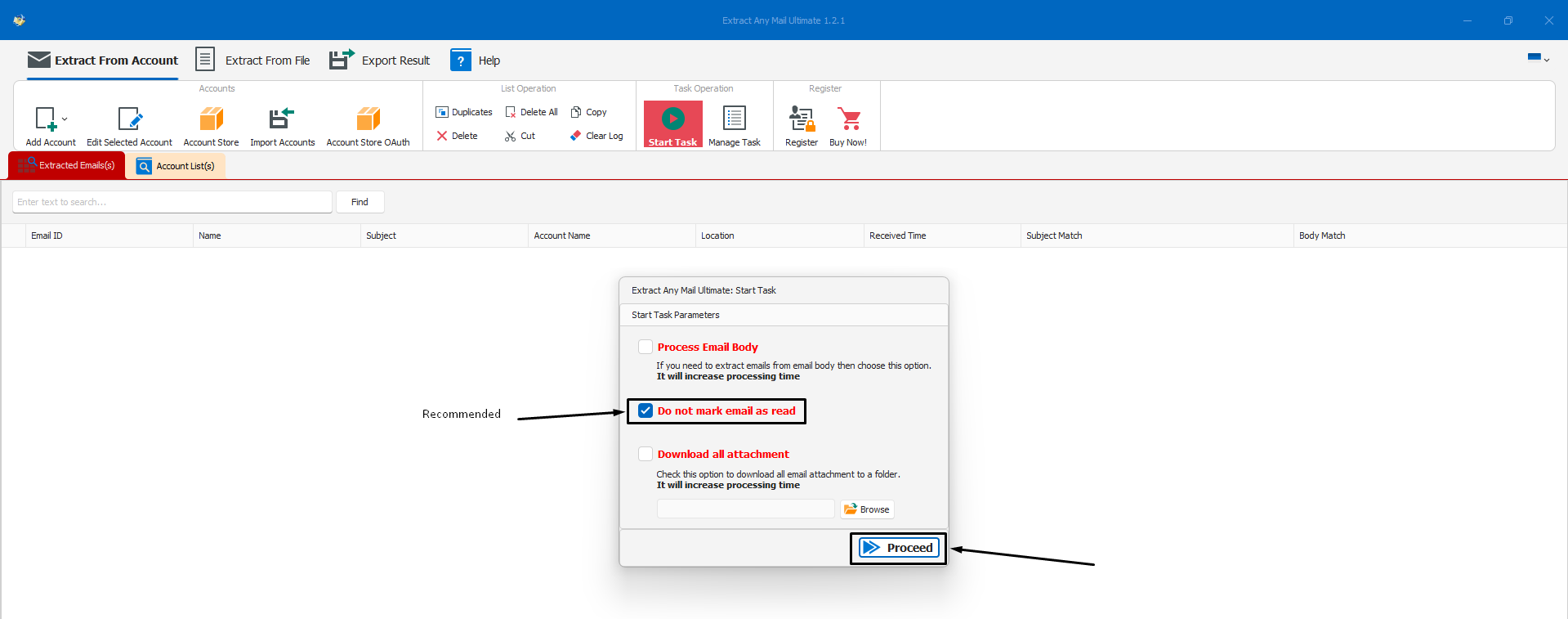
- On the next window, select “Do not mark email as read” and click “Start Process”.
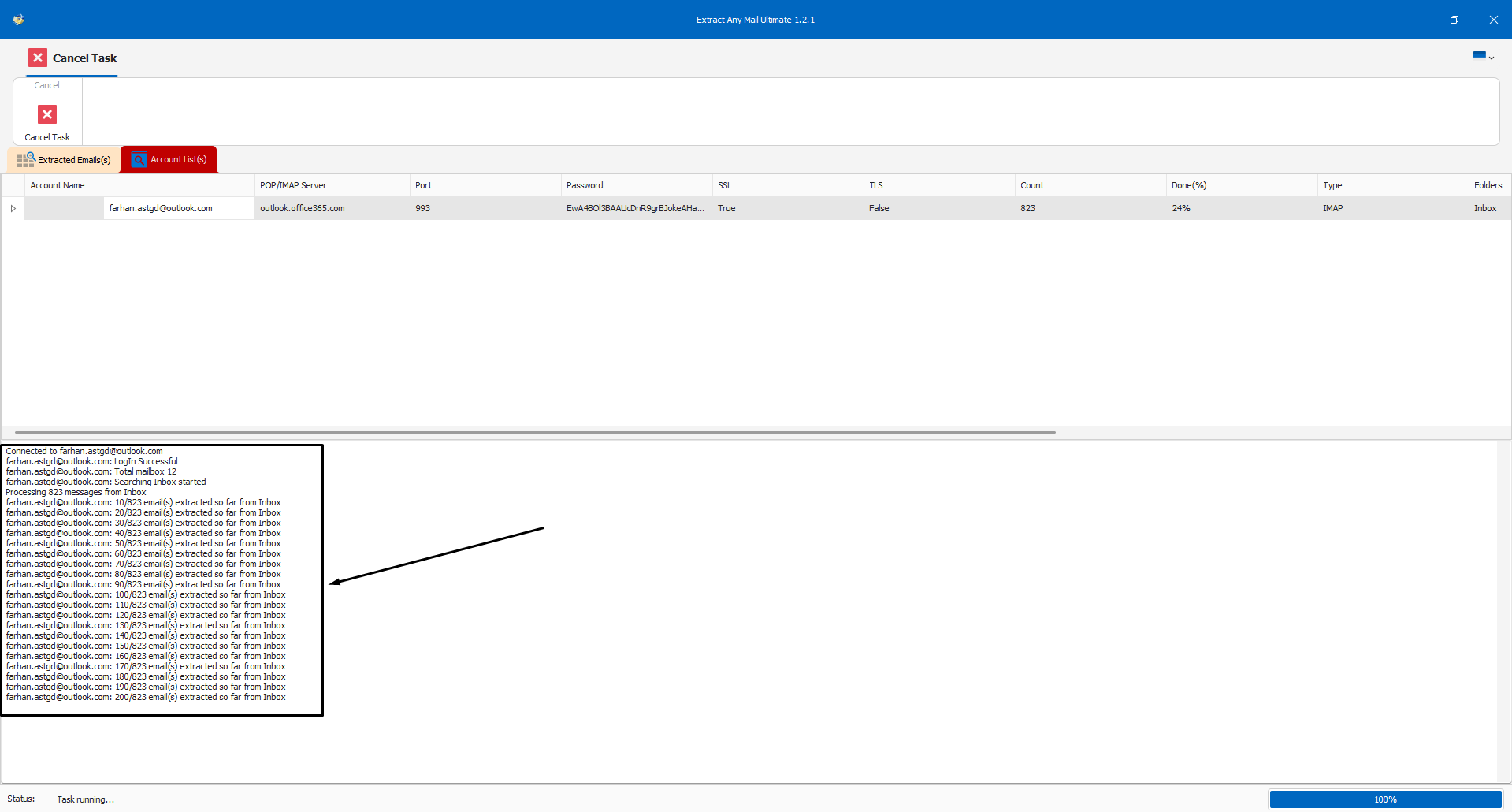
- The email extractor will now finally extract addresses according to the selected options.
Step 5: Exporting the extracted email addresses
Once the email extraction is completed, you need to save the extracted email addresses. For that, click the “Export Results” option and select your desired file format for saving the email addresses.
The “Export Text” option only saves the email addresses, no other information is saved. If you need all other information, consider choosing from the other three options.

Conclusion
This concludes our tutorial post on how to register an application in Azure Portal for getting the Client ID which is needed for accessing Office365 or Microsoft account from a 3rd party application. Hope this helps you to extract email addresses using our Extract Any Mail Ultimate. Some of the settings or options may vary depending on your email account and organizational settings. However, the settings and process are the same for all Microsoft accounts.
Let us know if you encounter any issues while setting up the OAuth. Our support team will assist you, but please bear it in mind that you must have sufficient access to the account to perform all these steps.
Keep exploring
Related Posts
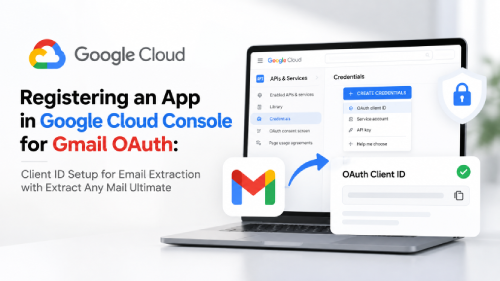
Registering an App in Google Cloud Console for Gmail OAuth: Client ID Setup for Email Extraction with Extract Any Mail Ultimate
OAuth for Gmail or Google WorkspaceTo use “Extract Any Mail Ultimate” with your Google account and extract email addresses, the software requires a Client ID and Client Secret to authenticate with Google’s APIs (Gmail API in this case). These credentials are part of Google’s OAut...
Read article →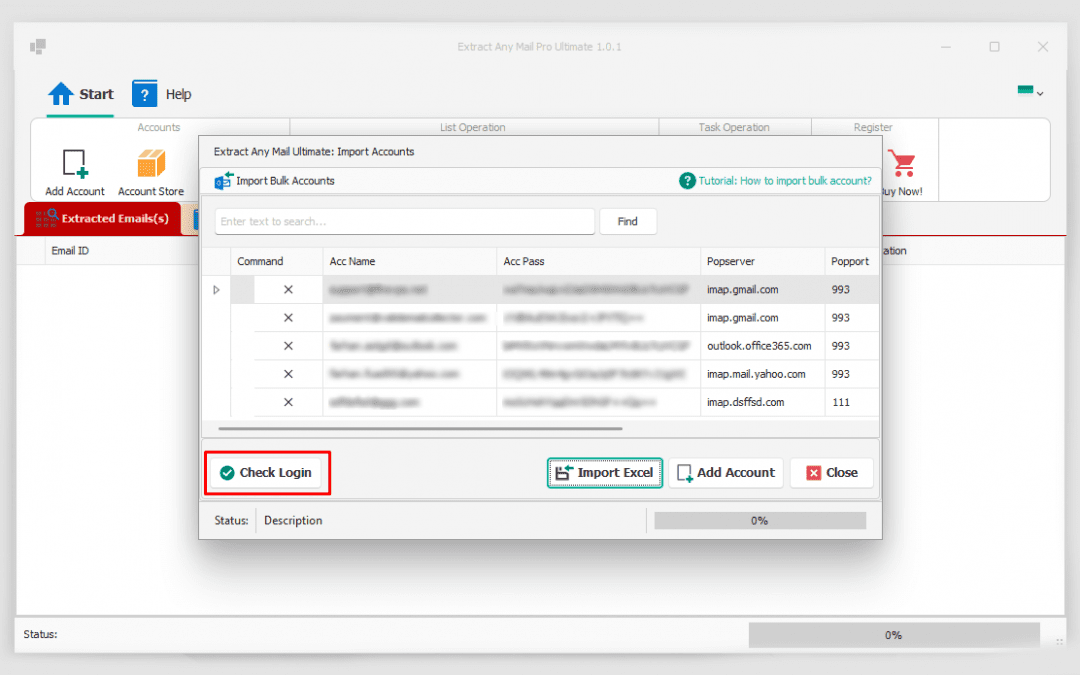
How to import bulk emails.
The Extract Any Mail Ultimate is the latest and the UPGRADED version of the popular Extract Any Mail Pro software from Valid Email Collector. It has many NEW features and all known issues/bugs were fixed in this version. One of the NEW features is the Bulk Import, which is used f...
Read article →
How to create app password for Gmail
Due to the email providers security update, you need to generate an app password to access the account from a 3rd party application. For generating an app password for Gmail, you need to login to your Gmail/Google account first.1. You can login from here to go to the security pag...
Read article →